

Warning: mysqli_query(): (HY000/1194): Table 'wp_options' is marked as crashed and should be repaired in /www/wwwroot/petsr4u.com/wp-includes/class-wpdb.php on line 2357
Warning: mysqli_query(): (HY000/1194): Table 'wp_options' is marked as crashed and should be repaired in /www/wwwroot/petsr4u.com/wp-includes/class-wpdb.php on line 2357
Warning: mysqli_query(): (HY000/1194): Table 'wp_options' is marked as crashed and should be repaired in /www/wwwroot/petsr4u.com/wp-includes/class-wpdb.php on line 2357
Warning: mysqli_query(): (HY000/1194): Table 'wp_options' is marked as crashed and should be repaired in /www/wwwroot/petsr4u.com/wp-includes/class-wpdb.php on line 2357
Warning: mysqli_query(): (HY000/1194): Table 'wp_options' is marked as crashed and should be repaired in /www/wwwroot/petsr4u.com/wp-includes/class-wpdb.php on line 2357
Warning: mysqli_query(): (HY000/1194): Table 'wp_options' is marked as crashed and should be repaired in /www/wwwroot/petsr4u.com/wp-includes/class-wpdb.php on line 2357
Warning: mysqli_query(): (HY000/1194): Table 'wp_options' is marked as crashed and should be repaired in /www/wwwroot/petsr4u.com/wp-includes/class-wpdb.php on line 2357
Warning: mysqli_query(): (HY000/1194): Table 'wp_options' is marked as crashed and should be repaired in /www/wwwroot/petsr4u.com/wp-includes/class-wpdb.php on line 2357
Warning: mysqli_query(): (HY000/1194): Table 'wp_options' is marked as crashed and should be repaired in /www/wwwroot/petsr4u.com/wp-includes/class-wpdb.php on line 2357
Warning: mysqli_query(): (HY000/1194): Table 'wp_options' is marked as crashed and should be repaired in /www/wwwroot/petsr4u.com/wp-includes/class-wpdb.php on line 2357
VPS Windows là lựa chọn quen thuộc của dân chạy phần mềm tự động, treo phần mềm biểu đồ tài chính, quản lý nhiều tài khoản hay đơn giản là cần một máy tính Windows online 24/7 ở xa. Tại VPSMMO, quá trình thuê VPS chỉ mất vài phút, nhưng có hai điểm Quý khách cần nắm rõ trước khi sử dụng: (1) mật khẩu VPS do chính Quý khách tự đặt trong lúc mua và không lưu trên Portal hay email vì lý do bảo mật, (2) với VPS Windows phải đăng nhập qua VNC để đổi mật khẩu lần đầu trước khi có thể kết nối Remote Desktop. Bài viết này hướng dẫn đầy đủ từ A đến Z: từ đăng ký, nạp tiền, chọn gói, đến set password qua VNC và kết nối Remote Desktop hoàn chỉnh.
Mục lục bài viết
- Đăng ký tài khoản và nạp tiền tại VPSMMO
- Chọn gói VPS Windows và khởi tạo dịch vụ
- Lấy thông tin VPS sau khi mua
- Set password qua VNC trước khi đăng nhập lần đầu (mới)
- Kết nối VPS Windows bằng Remote Desktop Connection
- Các thao tác quản lý VPS Windows thường gặp
- Lỗi thường gặp khi kết nối VPS Windows
1. Đăng ký tài khoản và nạp tiền tại VPSMMO
Mục Lục
- Bước 1: Đăng ký tài khoản
- Bước 2: Nạp tiền vào tài khoản
- Sự khác biệt giữa VPS Linux và VPS Windows ở bước đăng nhập lần đầu
- Bước 1: Mở VNC từ Portal Quản trị
- Bước 2: Mở bảng phím ảo trên giao diện noVNC
- Bước 3: Gửi tổ hợp phím Ctrl+Alt+Delete
- Bước 4: Đăng nhập và nhận thông báo đổi mật khẩu
- Bước 5: Đặt mật khẩu mới
- Bước 6: Vào màn hình Sign in – hoàn tất
- Đổi mật khẩu VPS qua Portal
- Gia hạn dịch vụ VPS
- Tự động gia hạn
- Cài lại hệ điều hành VPS
- Nâng cấp cấu hình VPS
- Restore Backup VPS
- Lỗi 1: Remote Desktop báo “Your credentials did not work”
- Lỗi 2: Không kết nối được VNC trên Portal
- Lỗi 3: Không gõ được password trên màn VNC
- Lỗi 4: Mật khẩu mới bị từ chối ở bước 5
- Lỗi 5: RDP kết nối được rồi tự ngắt sau vài phút
Bước 1: Đăng ký tài khoản
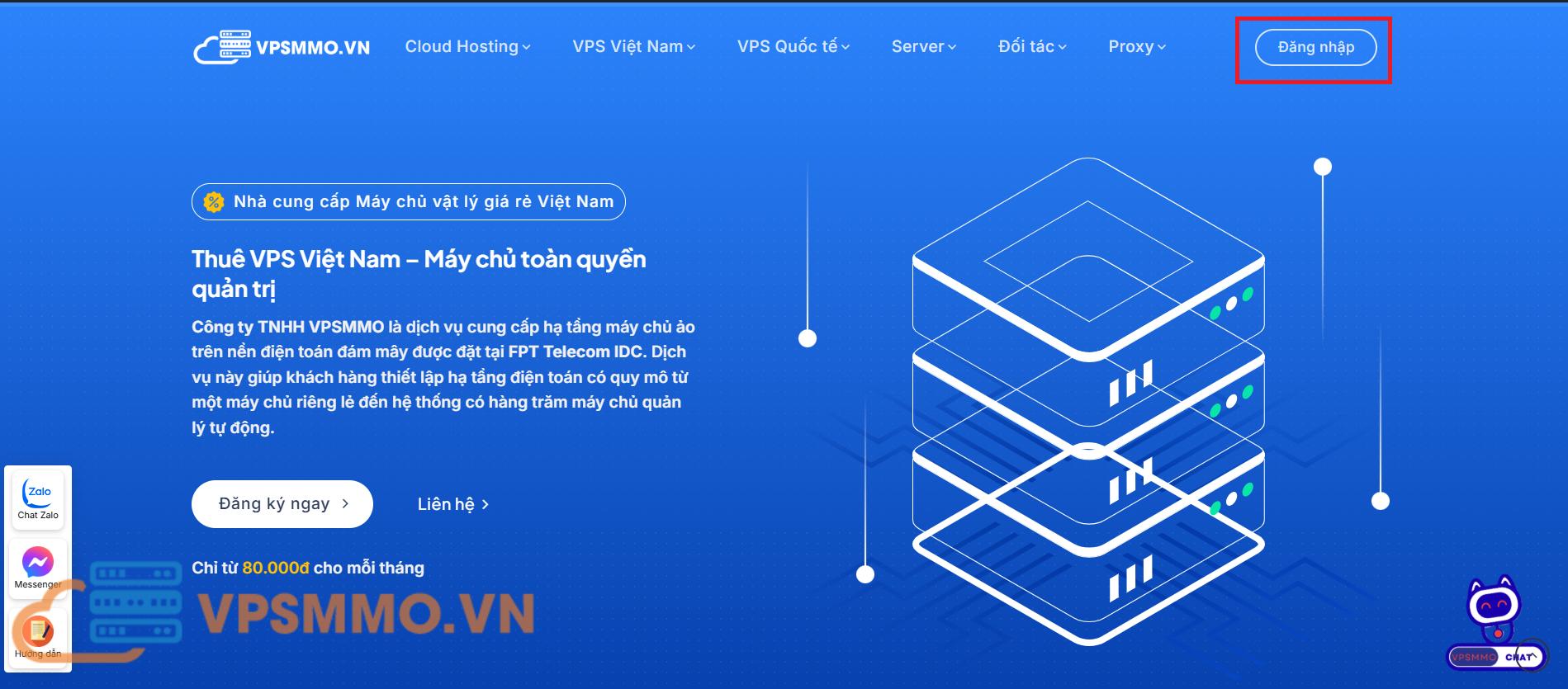
Truy cập vpsmmo.vn và nhấn nút “Đăng Nhập” ở góc trên bên phải màn hình.
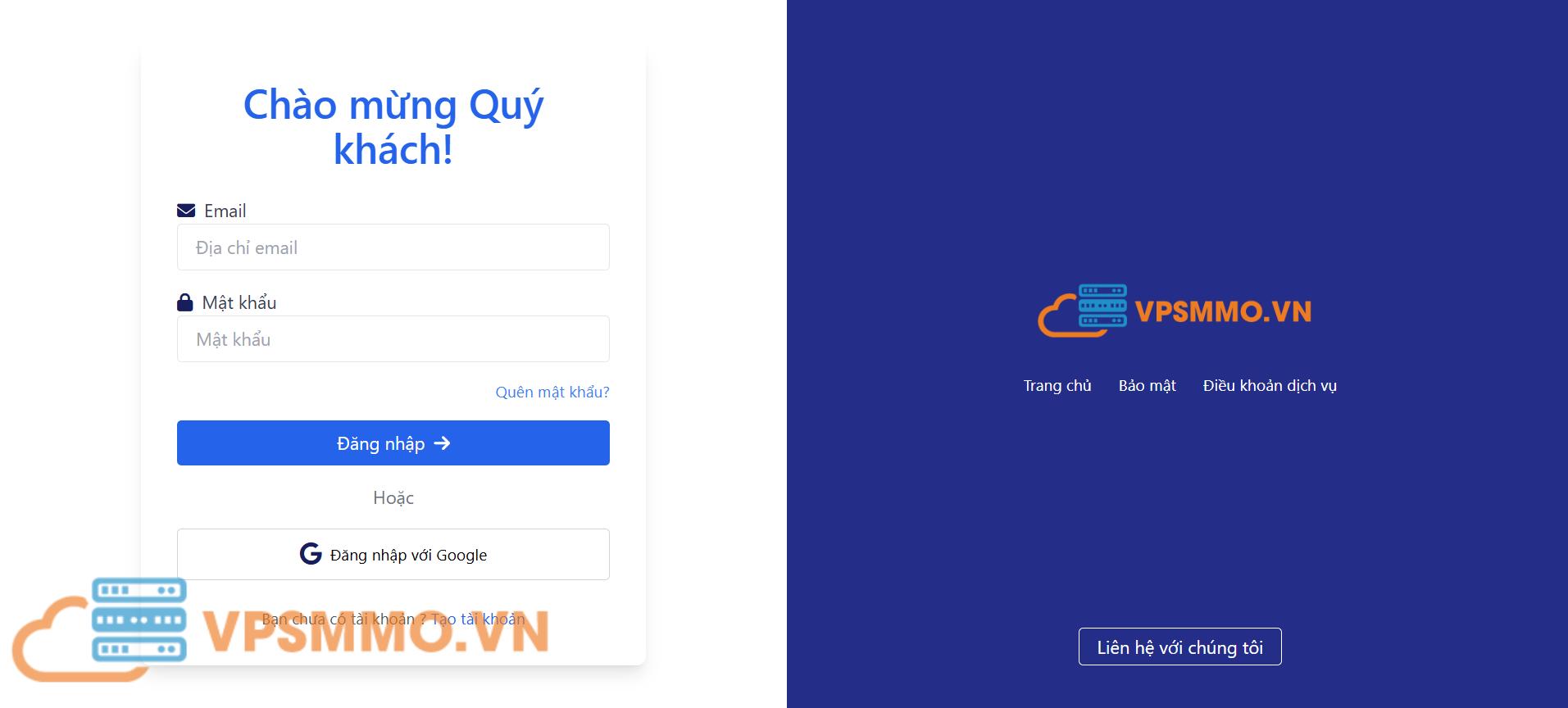
Nếu chưa có tài khoản, Quý khách chọn “Tạo tài khoản” như hình bên dưới.
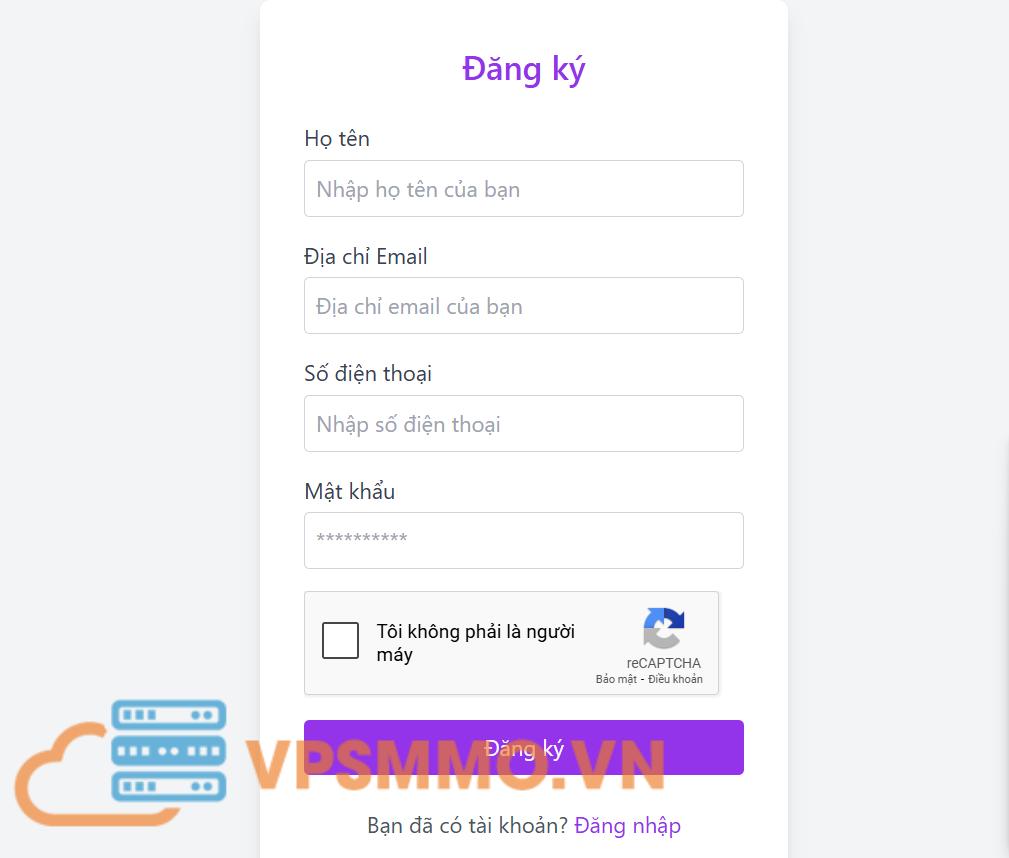
Tại biểu mẫu Tạo tài khoản, điền đầy đủ các thông tin gồm họ tên, email, mật khẩu và một vài thông tin cá nhân cơ bản. Sau đó nhấn nút “Đăng ký” để hệ thống ghi nhận.
Sau khi đăng ký, Quý khách kiểm tra email để xác thực tài khoản (nếu có yêu cầu) và đăng nhập vào hệ thống.
Bước 2: Nạp tiền vào tài khoản
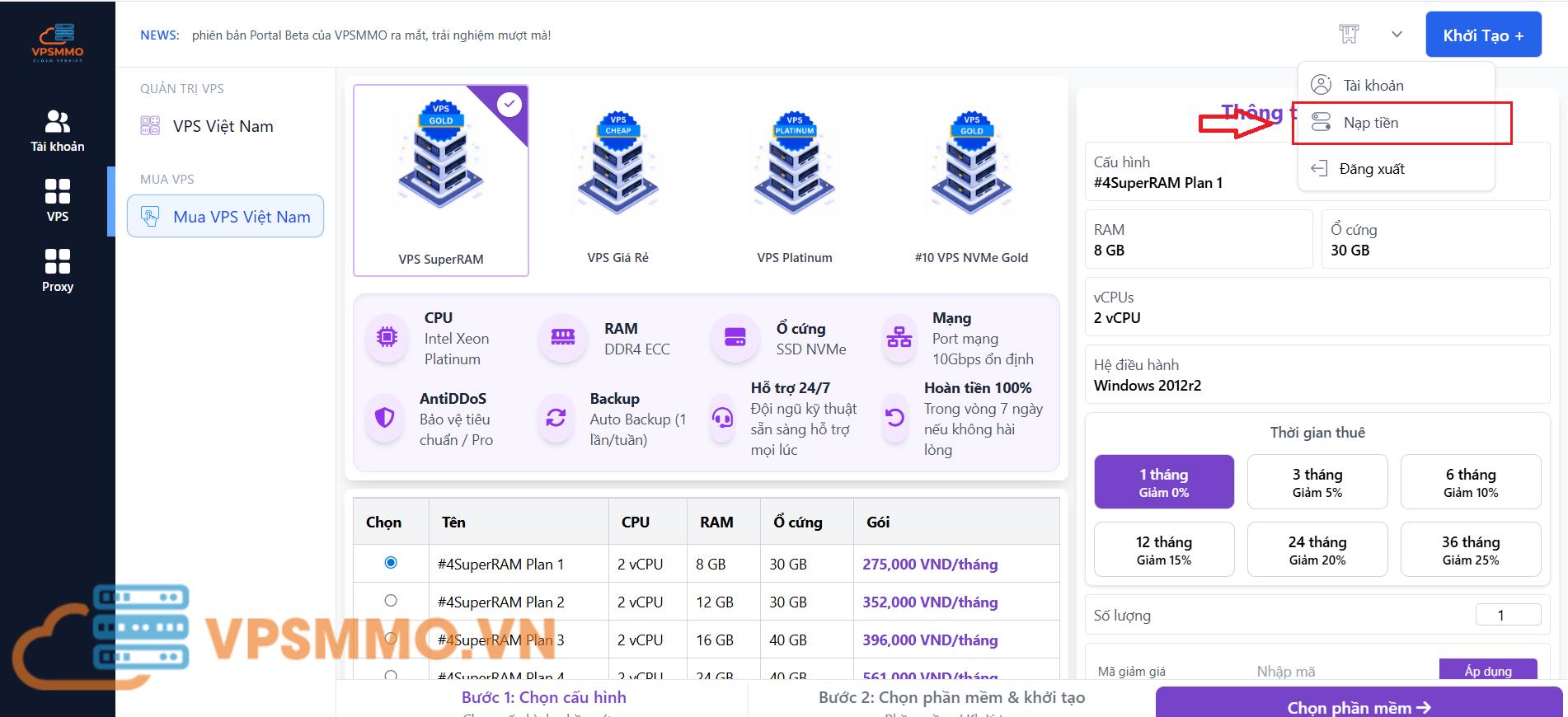
Trước khi khởi tạo VPS, Quý khách cần nạp tiền vào ví. Tại giao diện trang quản trị, click vào mũi tên xuống và chọn Nạp tiền.
Sử dụng mã QR code hiển thị trên màn hình để thanh toán nhanh qua app ngân hàng (MB Bank chi nhánh Cần Thơ, CTK: Công ty TNHH VPSMMO, STK: 0000320442230).
**Lưu ý: Để hệ thống tự động xác nhận và cộng tiền vào ví, vui lòng KHÔNG CHỈNH SỬA NỘI DUNG CHUYỂN KHOẢN trên QR.
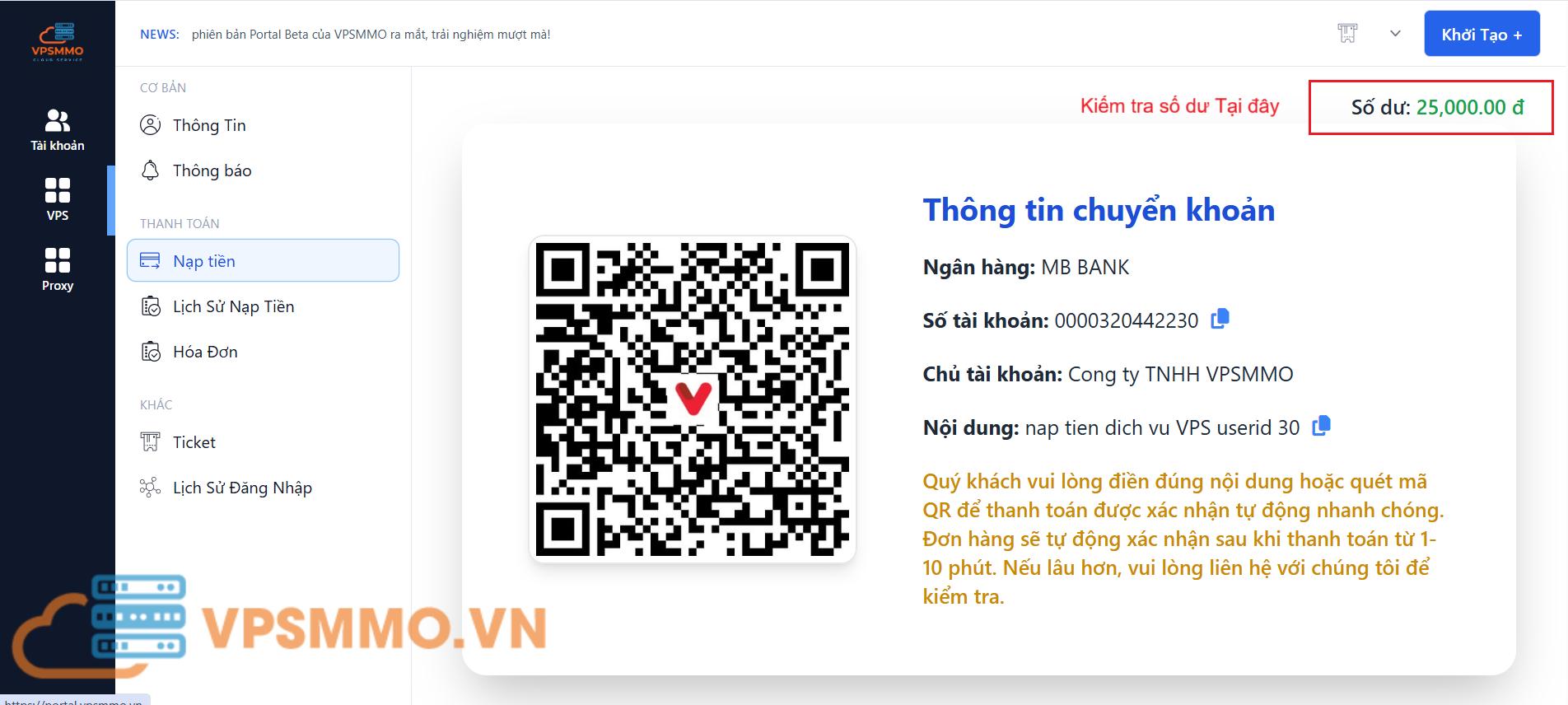
Số dư sẽ được cộng vào ví trong vòng vài giây sau khi chuyển khoản thành công.
2. Chọn gói VPS Windows và khởi tạo dịch vụ
Tại giao diện trang chủ Portal sau khi đăng nhập, menu bên trái có đầy đủ các dòng dịch vụ VPS và Máy chủ. Đối với nhu cầu chạy Windows, Quý khách có thể tham khảo các dòng phổ biến:
- VPS Platinum — CPU Intel Xeon Platinum 8171M, phù hợp treo phần mềm tự động, MMO, đa nhiệm nặng
- VPS NVMe Gold — Ổ NVMe tốc độ cao, phù hợp web/app đòi hỏi I/O nhanh
- VPS RAM Cao — Ưu tiên RAM lớn, phù hợp chạy nhiều profile trình duyệt cùng lúc
Quý khách nên cân nhắc CPU, RAM và ổ cứng theo đúng mục đích sử dụng để tối ưu chi phí. Sau khi chọn được gói VPS phù hợp, nhấn “Chọn phần mềm” để chuyển sang bước cấu hình hệ điều hành.
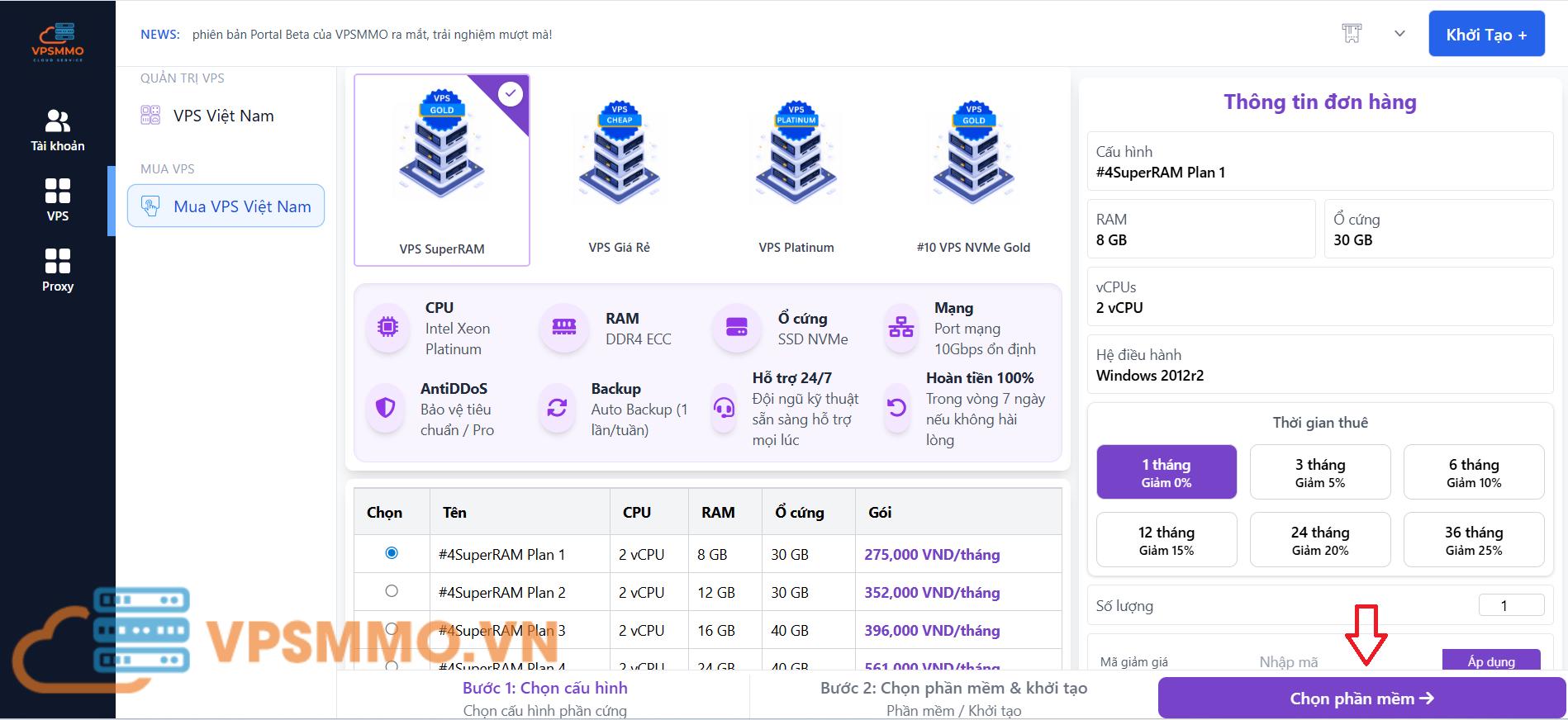
Tại bước này, Quý khách chọn hệ điều hành Windows Server (2019 hoặc 2022 tùy nhu cầu), điền tên máy chủ và tự đặt mật khẩu cho VPS vào ô bên dưới.
Lưu ý quan trọng về cơ chế bảo mật mật khẩu của VPSMMO: Mật khẩu VPS do chính Quý khách tự đặt trong bước này. Hệ thống Portal KHÔNG lưu trữ mật khẩu và email thông báo cũng KHÔNG chứa mật khẩu — email chỉ gửi địa chỉ IP của VPS. Đây là cơ chế bảo mật chủ động: kể cả tài khoản Portal hay email của Quý khách có bị xâm nhập, kẻ tấn công cũng không thể lấy được mật khẩu VPS. Vì vậy Quý khách bắt buộc phải lưu lại mật khẩu vừa đặt vào nơi an toàn (trình quản lý mật khẩu, ghi chú riêng) — nếu lỡ quên, chỉ có thể reset password qua chức năng đổi mật khẩu trong Portal (xem mục 6).
Sau khi hoàn tất, nhấn “Khởi tạo” để bắt đầu tạo VPS. Hệ thống sẽ tự động trừ tiền trong ví và tiến hành cài đặt.
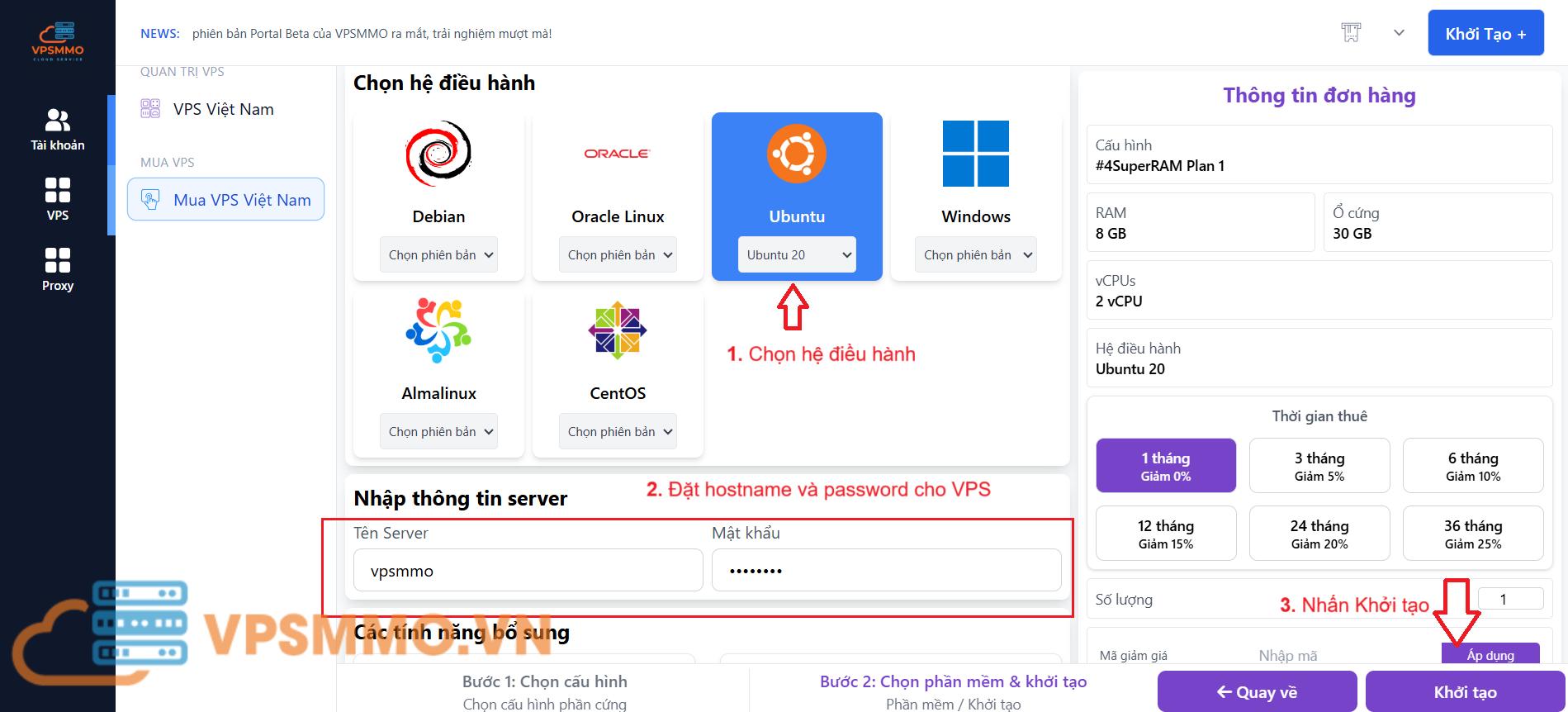
Thời gian khởi tạo VPS cloud thường mất khoảng 60 giây sau khi thanh toán. Trong thời gian này Quý khách có thể đứng dậy uống ly nước rồi quay lại là dùng được.
3. Lấy thông tin VPS sau khi mua
Sau khi khởi tạo thành công, hệ thống sẽ tự động gửi email “Thông tin máy chủ” về email đăng ký, trong đó gồm địa chỉ IP của VPS và các thông số cấu hình. (Nếu không thấy trong hộp thư đến, vui lòng kiểm tra hộp thư Spam.)
Như đã đề cập ở mục 2: Email không chứa mật khẩu VPS vì lý do bảo mật. Mật khẩu là cái Quý khách đã tự đặt trong bước khởi tạo — không lưu trên Portal, không gửi qua email. Quý khách dùng mật khẩu đó để đăng nhập VPS.
Bên cạnh đó, Quý khách có thể vào mục Quản trị VPS trong Portal để xem thông tin VPS bất cứ lúc nào. Click vào dấu ba chấm ở dòng VPS muốn xem.
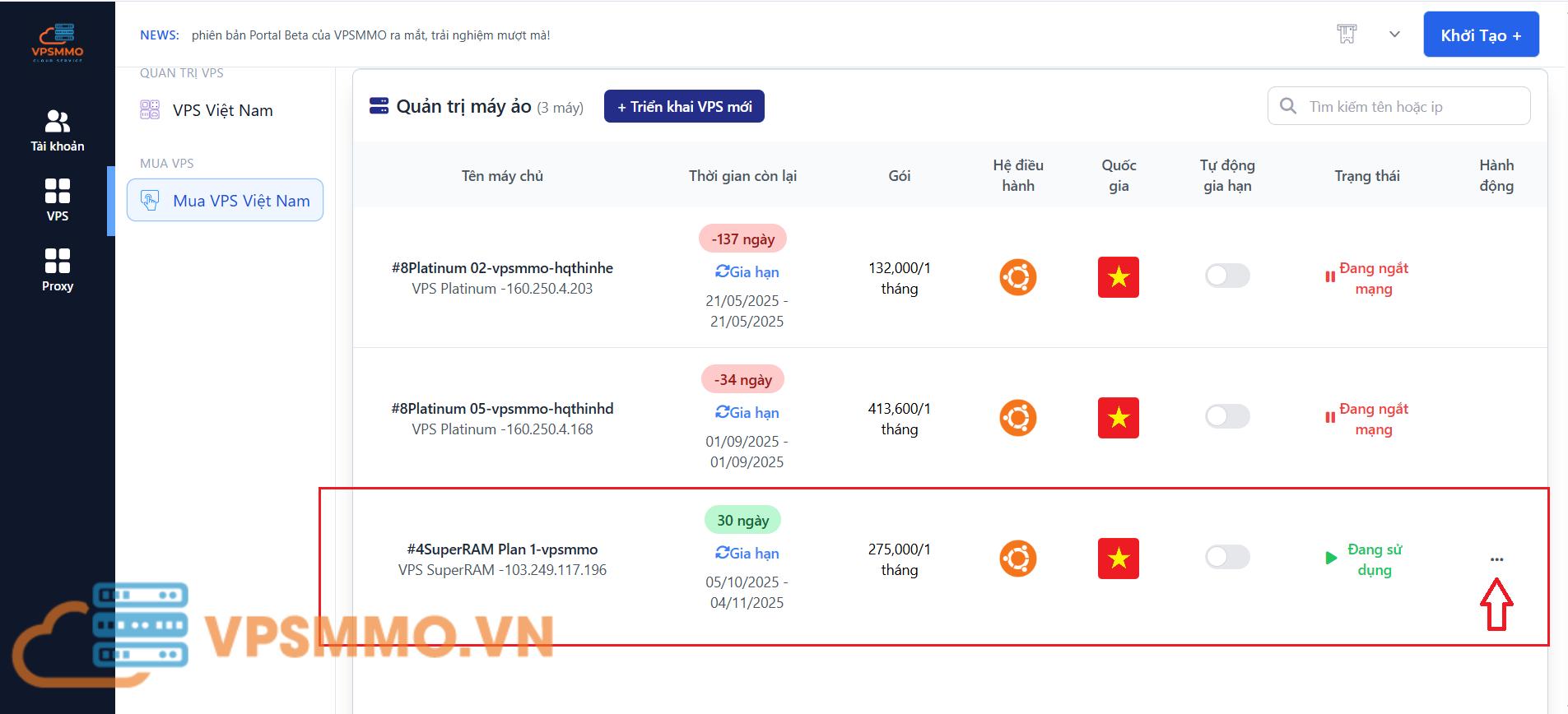
Nhấp vào “Xem chi tiết” để xem được đầy đủ: Hostname, Địa chỉ IP, Hệ điều hành, Dung lượng, CPU, RAM, Băng thông. Riêng mật khẩu sẽ không hiển thị tại đây — nếu lỡ quên, Quý khách dùng chức năng đổi mật khẩu (xem mục 6).
Username mặc định khi đăng nhập VPS:
- VPS Windows: Administrator
- VPS Linux: root
Sự khác biệt giữa VPS Linux và VPS Windows ở bước đăng nhập lần đầu
Đây là điểm Quý khách cần nắm rõ vì cách dùng khác nhau:
- VPS Linux: Sau khi nhận IP qua email, Quý khách dùng phần mềm SSH (PuTTY, Termius, MobaXterm) kết nối với username
root+ mật khẩu đã tự đặt khi mua. Vào dùng được ngay, không cần thêm bước nào. - VPS Windows: Quý khách không thể RDP trực tiếp được ngay. Phải vào VNC trên Portal để đăng nhập và đổi mật khẩu lần đầu (theo flow ở mục 4 bên dưới). Sau khi đổi xong mới có thể RDP từ máy tính cá nhân.
4. Set password qua VNC trước khi đăng nhập lần đầu (Bước mới)
Đây là phần quan trọng cần đọc kỹ. Để tăng bảo mật và đảm bảo mỗi VPS có mật khẩu riêng do chính chủ tự đặt, hệ thống template Windows mới của VPSMMO yêu cầu khách hàng đổi mật khẩu lần đầu thông qua VNC trước khi có thể kết nối bằng Remote Desktop Connection. Quá trình này chỉ làm một lần duy nhất ngay sau khi nhận VPS.
Nguyên nhân kỹ thuật: Windows Server không cho phép đổi mật khẩu lần đầu qua giao thức RDP vì lý do bảo mật. Bắt buộc phải đổi qua giao diện console (VNC). Sau khi đổi xong, các lần sau Quý khách kết nối Remote Desktop bình thường bằng mật khẩu mới.
Bước 1: Mở VNC từ Portal Quản trị
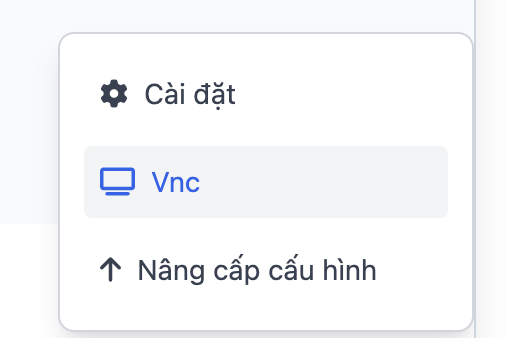
Vào mục Quản trị VPS trong Portal, tìm dòng VPS Windows vừa mua. Click vào dấu ba chấm bên phải để mở menu, sau đó chọn “Vnc”.
Bước 2: Mở bảng phím ảo trên giao diện noVNC
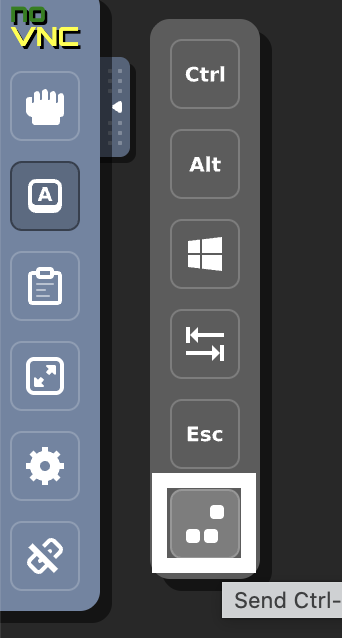
Sau khi click VNC, một tab mới sẽ mở ra giao diện noVNC hiển thị màn hình khóa của VPS Windows. Ở sidebar bên trái có một dãy icon dọc, Quý khách click vào icon chữ “A” để mở bảng phím ảo.

Bước 3: Gửi tổ hợp phím Ctrl+Alt+Delete
Bảng phím ảo xổ ra bên cạnh hiển thị các phím Ctrl, Alt, Windows, Tab, Esc. Click vào icon cuối cùng (Send Ctrl+Alt+Del) ở dưới cùng để gửi tổ hợp phím vào VPS. Đây là thao tác bắt buộc để hiện màn hình đăng nhập của Windows.
Mẹo: Nếu màn hình VNC chỉ hiện wallpaper mà không thấy ô đăng nhập, đó là dấu hiệu Quý khách cần gửi Ctrl+Alt+Delete. Đây là cơ chế bảo mật chuẩn của Windows Server.
Bước 4: Đăng nhập và nhận thông báo đổi mật khẩu
Sau khi gửi Ctrl+Alt+Delete, màn hình sẽ hiện ô nhập mật khẩu cho user Administrator. Quý khách nhập mật khẩu đã tự đặt lúc khởi tạo VPS (mật khẩu ở bước cuối mục 2).
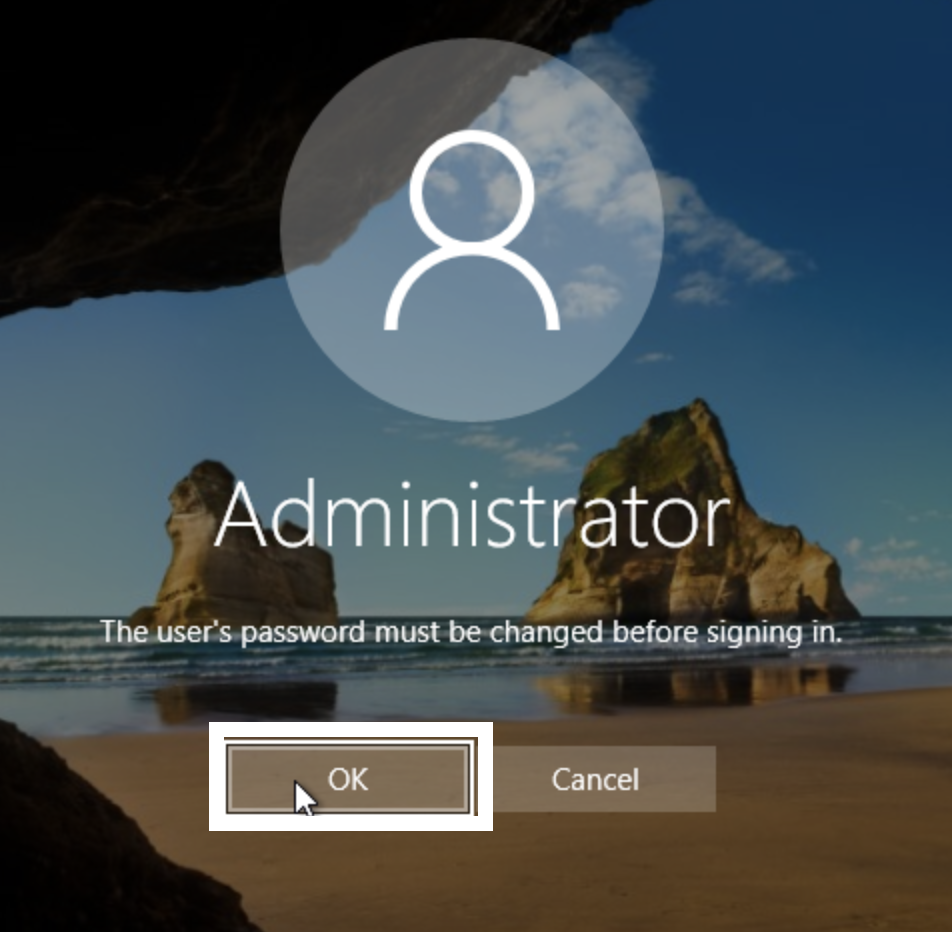
Khi đăng nhập lần đầu, Windows sẽ hiện thông báo: “The user’s password must be changed before signing in.” (Mật khẩu của tài khoản cần được đổi trước khi đăng nhập).
Quý khách click OK để chuyển sang màn hình đặt mật khẩu mới.
Bước 5: Đặt mật khẩu mới
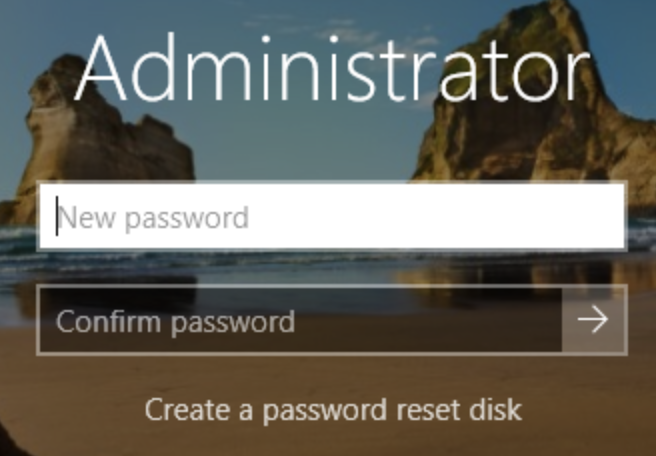
Tại màn hình tiếp theo, Quý khách nhập:
- New password: Mật khẩu mới do Quý khách tự đặt
- Confirm password: Nhập lại đúng mật khẩu mới
Sau đó click vào nút mũi tên (→) bên phải ô Confirm password để xác nhận.
Yêu cầu mật khẩu mới của Windows Server:
- Ít nhất 8 ký tự
- Có cả chữ HOA và chữ thường
- Có ít nhất 1 ký tự số (0-9)
- Có ít nhất 1 ký tự đặc biệt (!@#$%…)
- Không trùng với mật khẩu cũ và không chứa tên user
Quý khách nên lưu mật khẩu mới vào trình quản lý mật khẩu hoặc note lại nơi an toàn để tránh quên.
Bước 6: Vào màn hình Sign in – hoàn tất
Sau khi đặt mật khẩu mới thành công, Windows sẽ chuyển về màn hình khóa với nút “Sign in”. Tại đây Quý khách click vào nút Sign in để vào Desktop của VPS qua VNC.
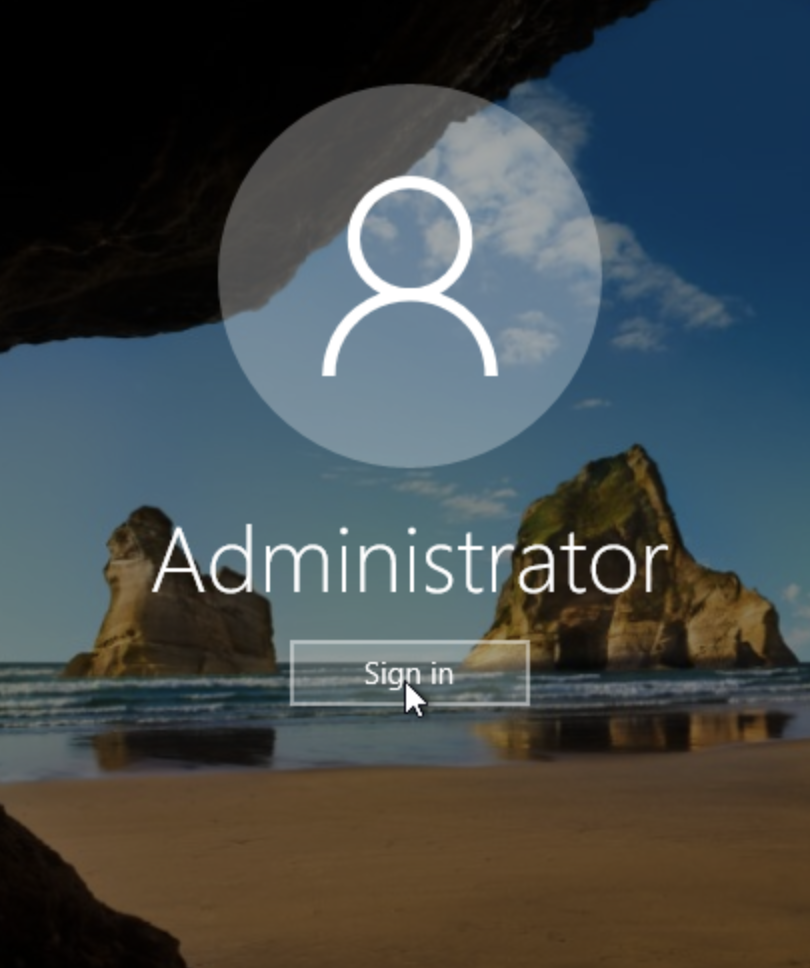
Tới đây, mật khẩu VPS Windows của Quý khách đã được đổi sang mật khẩu mới mà chỉ Quý khách biết. Có thể đóng tab VNC và chuyển sang kết nối bằng Remote Desktop Connection để sử dụng VPS thoải mái hơn (VNC chỉ phù hợp cho thao tác cấp cứu, không phải để dùng hàng ngày).
5. Kết nối VPS Windows bằng Remote Desktop Connection
Sau khi đã đổi mật khẩu qua VNC ở mục 4, Quý khách có thể kết nối VPS bình thường bằng Remote Desktop Connection — đây là cách kết nối nhanh, mượt và tiện dụng nhất khi sử dụng VPS Windows hàng ngày.
Trên máy tính Windows của Quý khách, mở Start menu và gõ tìm “Remote Desktop Connection”, sau đó mở ứng dụng. Hoặc nhanh hơn, nhấn tổ hợp Windows + R, gõ mstsc và Enter.
Tại ô Computer, nhập IP của VPS và nhấn Connect.
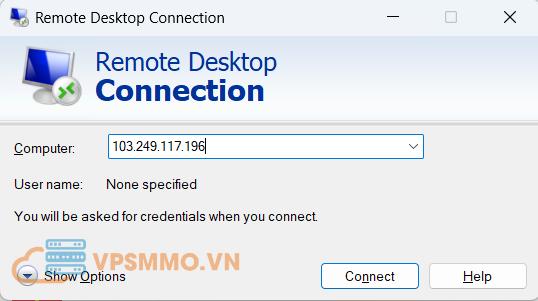
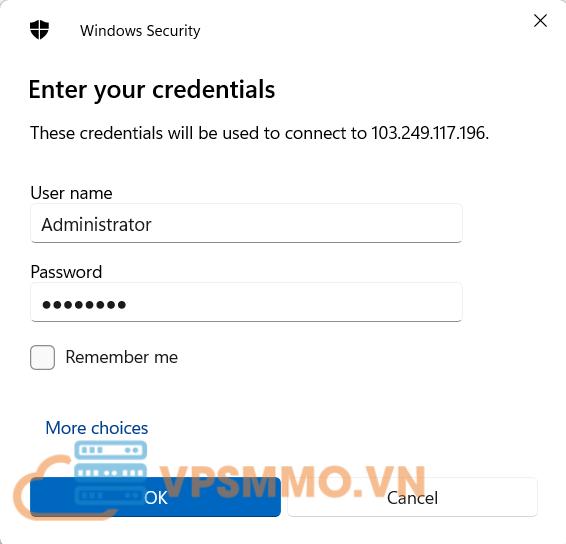
Cửa sổ đăng nhập hiện ra, Quý khách điền:
- Username: Administrator
- Password: Mật khẩu MỚI vừa đặt ở Bước 5 mục 4 (không phải mật khẩu ban đầu lúc khởi tạo VPS)
Sau đó nhấn OK.
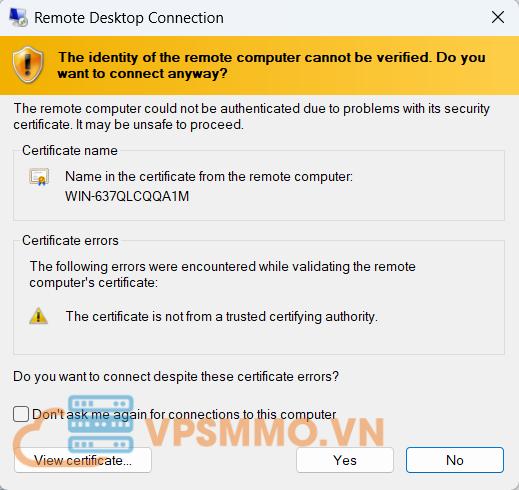
Lần đầu kết nối, Windows sẽ hiện cảnh báo xác thực certificate. Quý khách click Yes để xác nhận và bắt đầu điều khiển VPS từ xa.
Vậy là Quý khách đã vào được VPS Windows thành công. Từ giờ trở đi, các lần sử dụng tiếp theo chỉ cần mở Remote Desktop Connection → nhập IP + mật khẩu mới là vào dùng được ngay, không cần thao tác VNC nữa.
6. Các thao tác quản lý VPS Windows thường gặp
Đổi mật khẩu VPS qua Portal
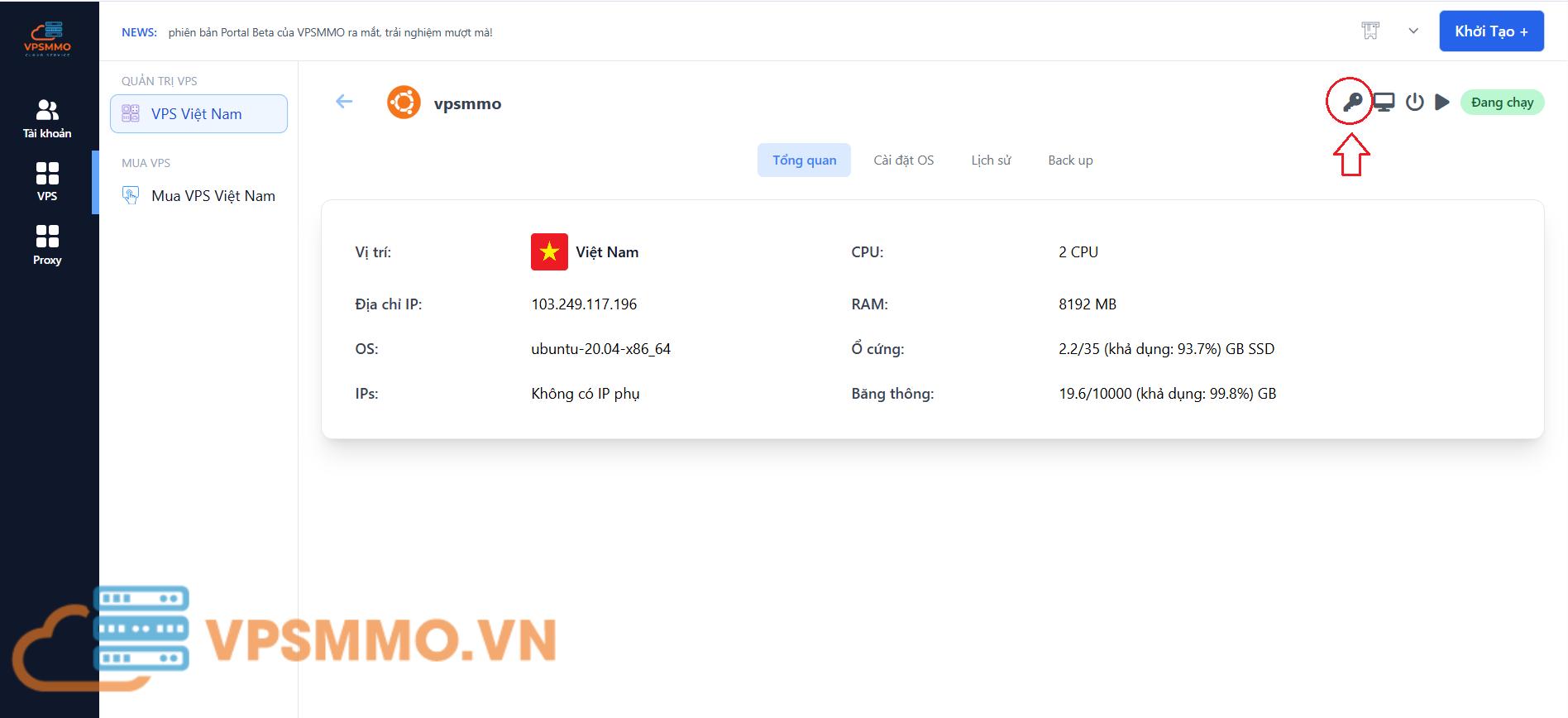
Nếu sau này Quý khách quên mật khẩu hoặc muốn đặt lại, có thể đổi qua Portal mà không cần vào VNC. Tại giao diện chi tiết VPS, click vào biểu tượng chìa khóa.
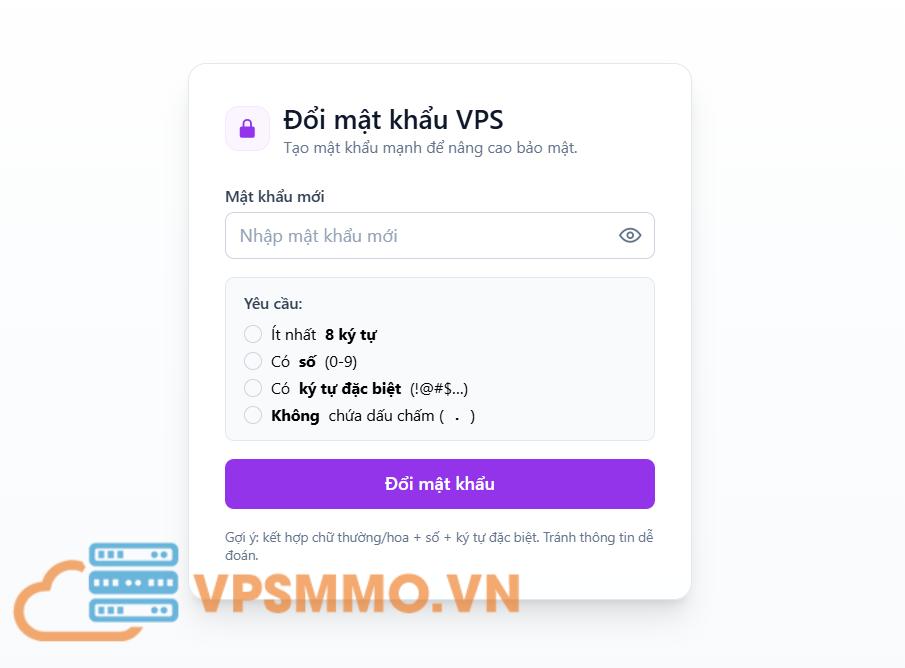
Nhập mật khẩu mới (tuân thủ yêu cầu bảo mật của Windows: tối thiểu 8 ký tự, có chữ hoa, chữ thường, số, ký tự đặc biệt, không chứa dấu chấm).
Lưu ý: Sau khi đổi mật khẩu qua Portal, Quý khách cần Tắt rồi Khởi động lại VPS để mật khẩu mới có hiệu lực.
Gia hạn dịch vụ VPS
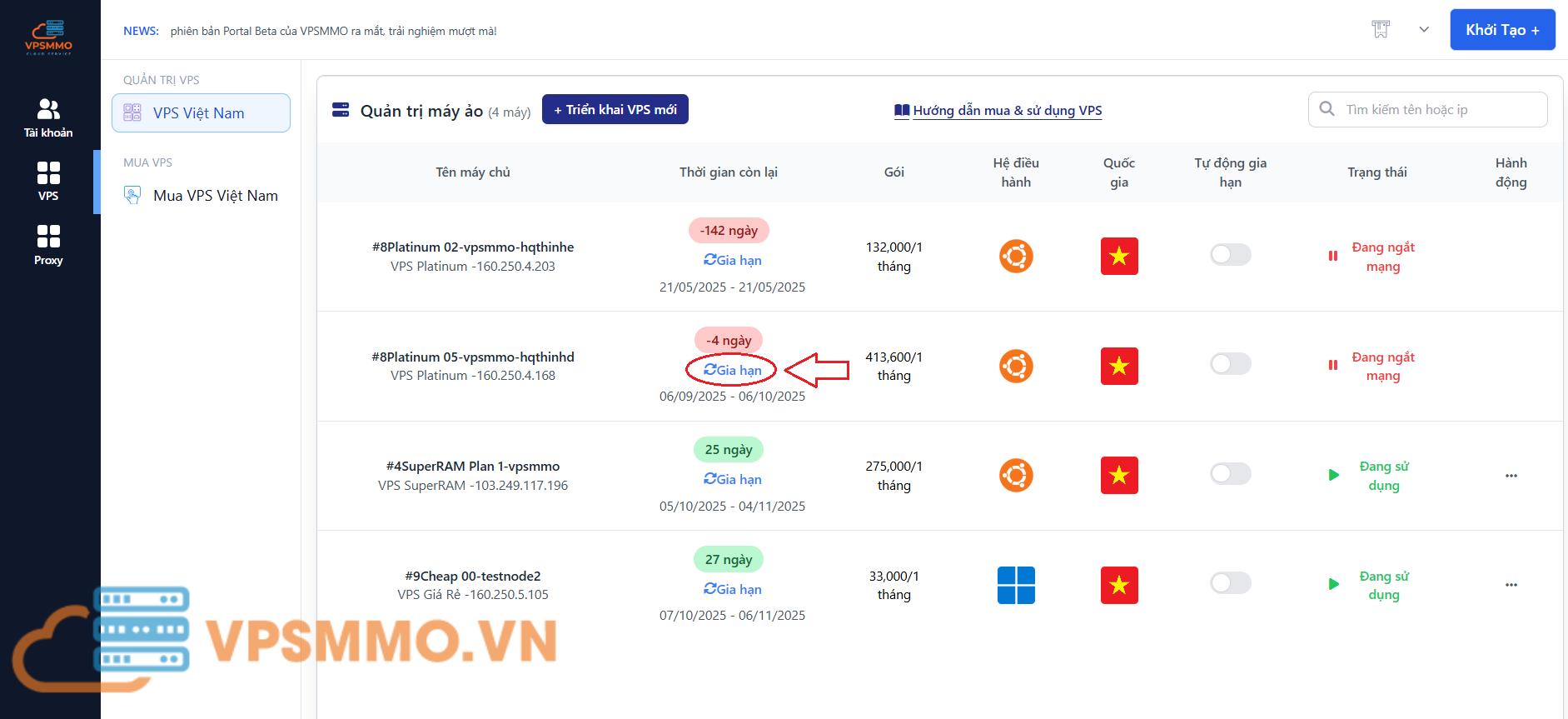
Khi VPS gần hết hạn hoặc đã trễ hạn, Quý khách nhấn vào nút Gia hạn tại VPS tương ứng.
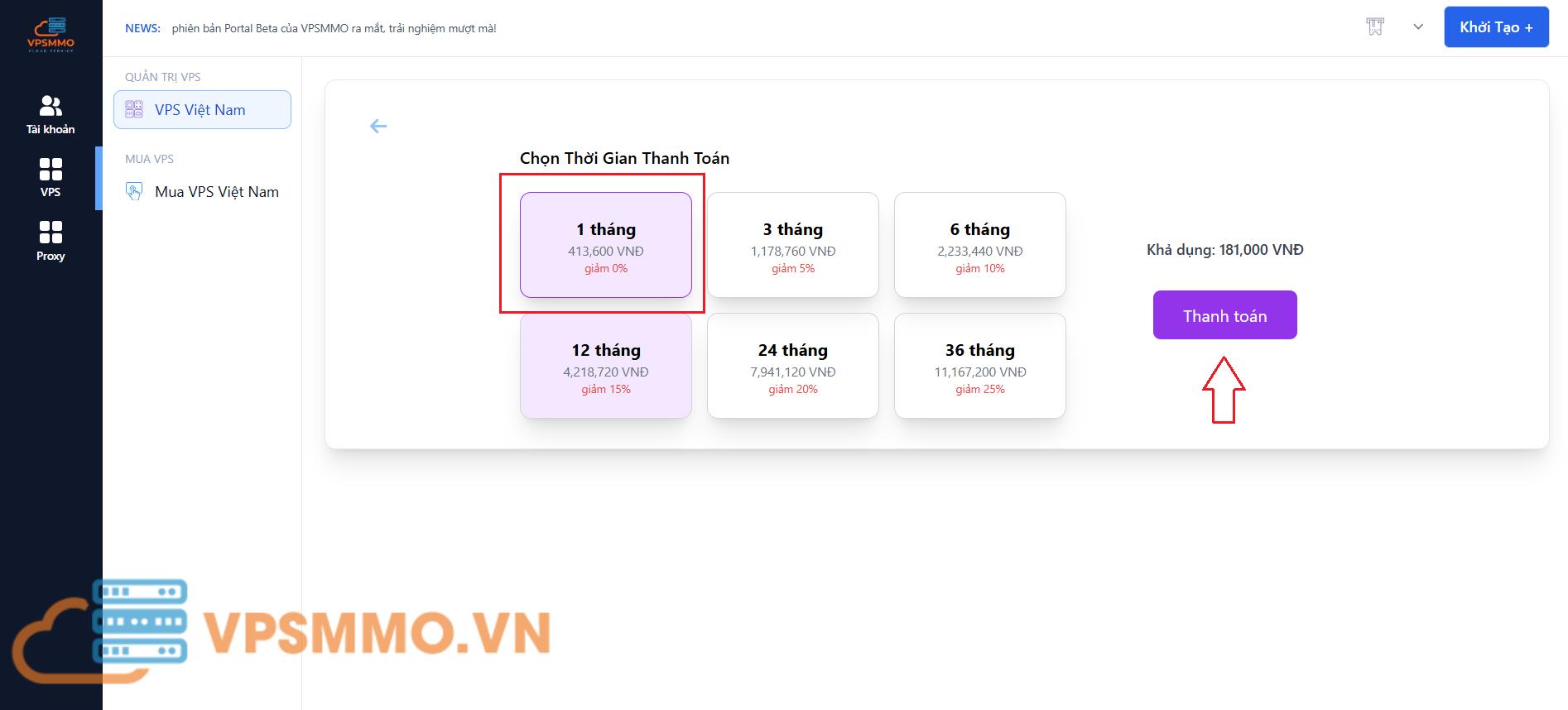
Chọn thời hạn sử dụng kế tiếp và nhấn Thanh toán. Lưu ý đảm bảo số dư trong ví đủ để thanh toán.
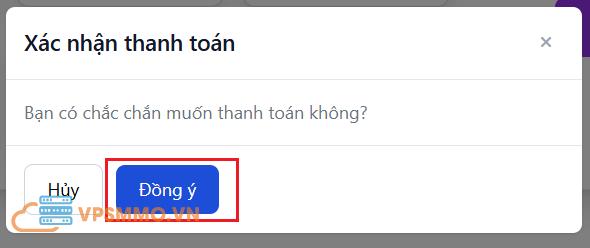
Nhấn Đồng ý để xác nhận thanh toán và hoàn tất gia hạn.
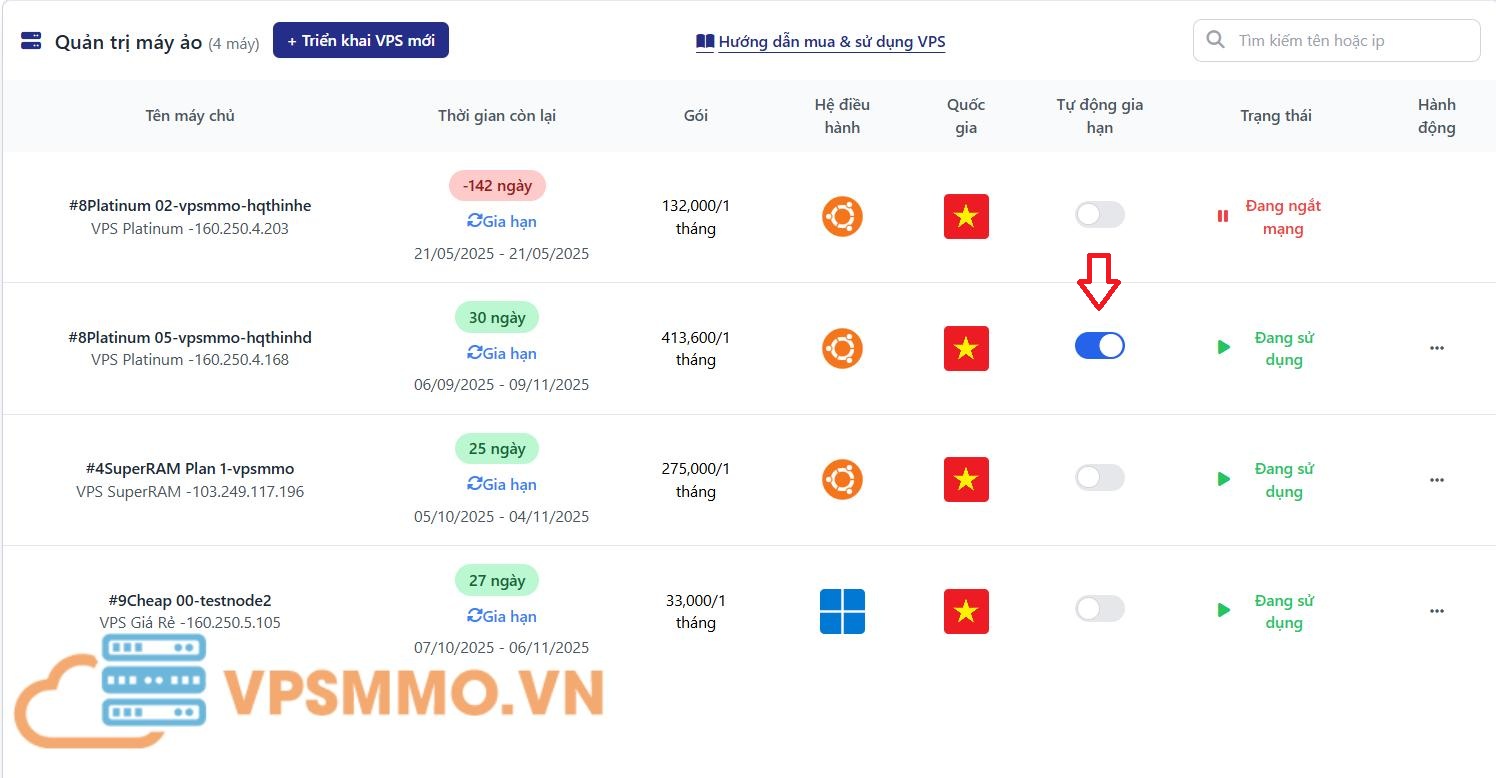
Tự động gia hạn
Để tránh tình trạng VPS bị ngắt dịch vụ do quên gia hạn, Quý khách nên bật Tự động gia hạn tại VPS đang sử dụng. Khi đến hạn, hệ thống sẽ tự trừ tiền trong ví — chỉ cần đảm bảo số dư ví luôn cao hơn giá tiền gia hạn.
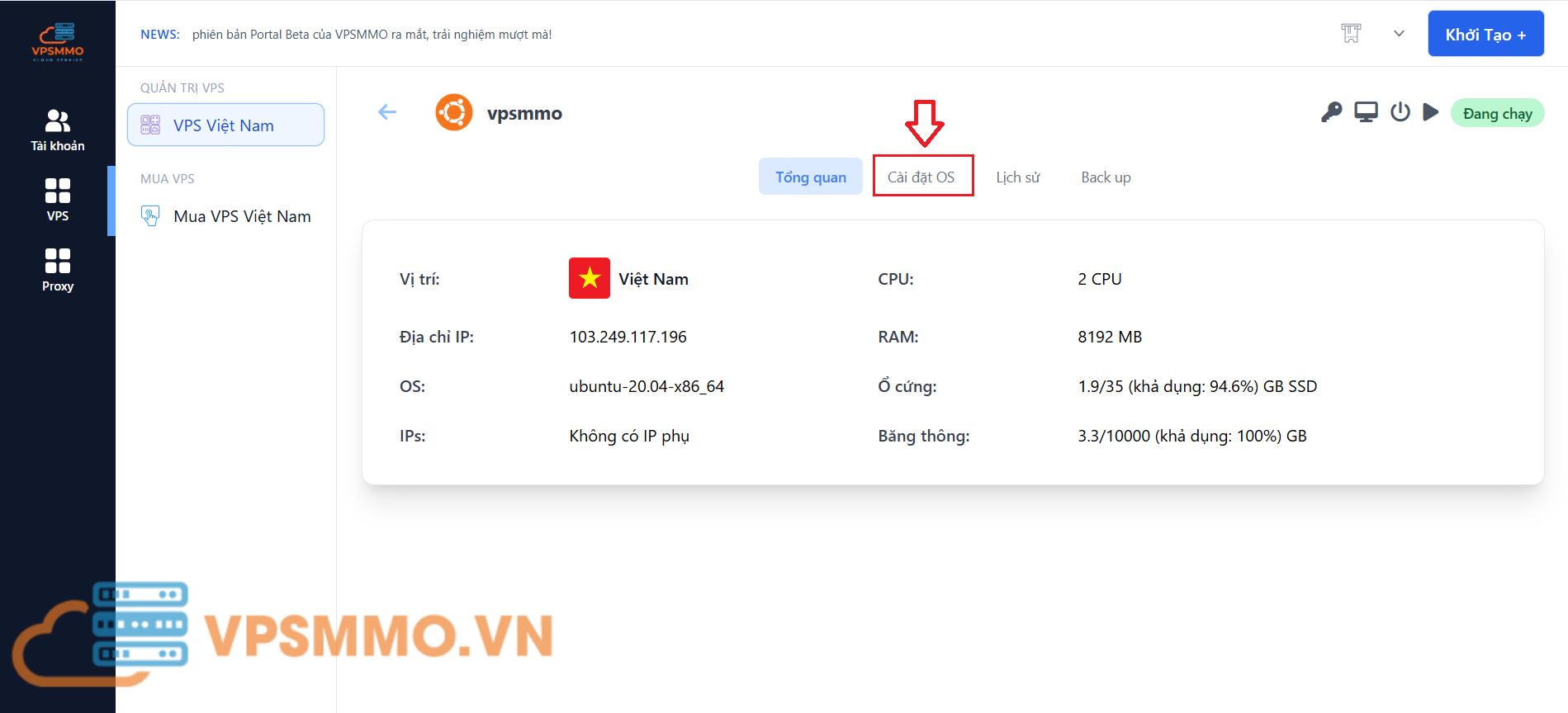
Cài lại hệ điều hành VPS
Khi cần cài lại Windows từ đầu (do Quý khách lỡ tay xóa file hệ thống, dính virus, hoặc đơn giản muốn làm sạch lại máy), vào chi tiết VPS, chọn “Cài đặt OS”.
Chọn hệ điều hành muốn cài (Windows Server 2019 hoặc 2022), nhập mật khẩu mới, sau đó nhấn “Cài đặt lại”. Quá trình mất vài phút.
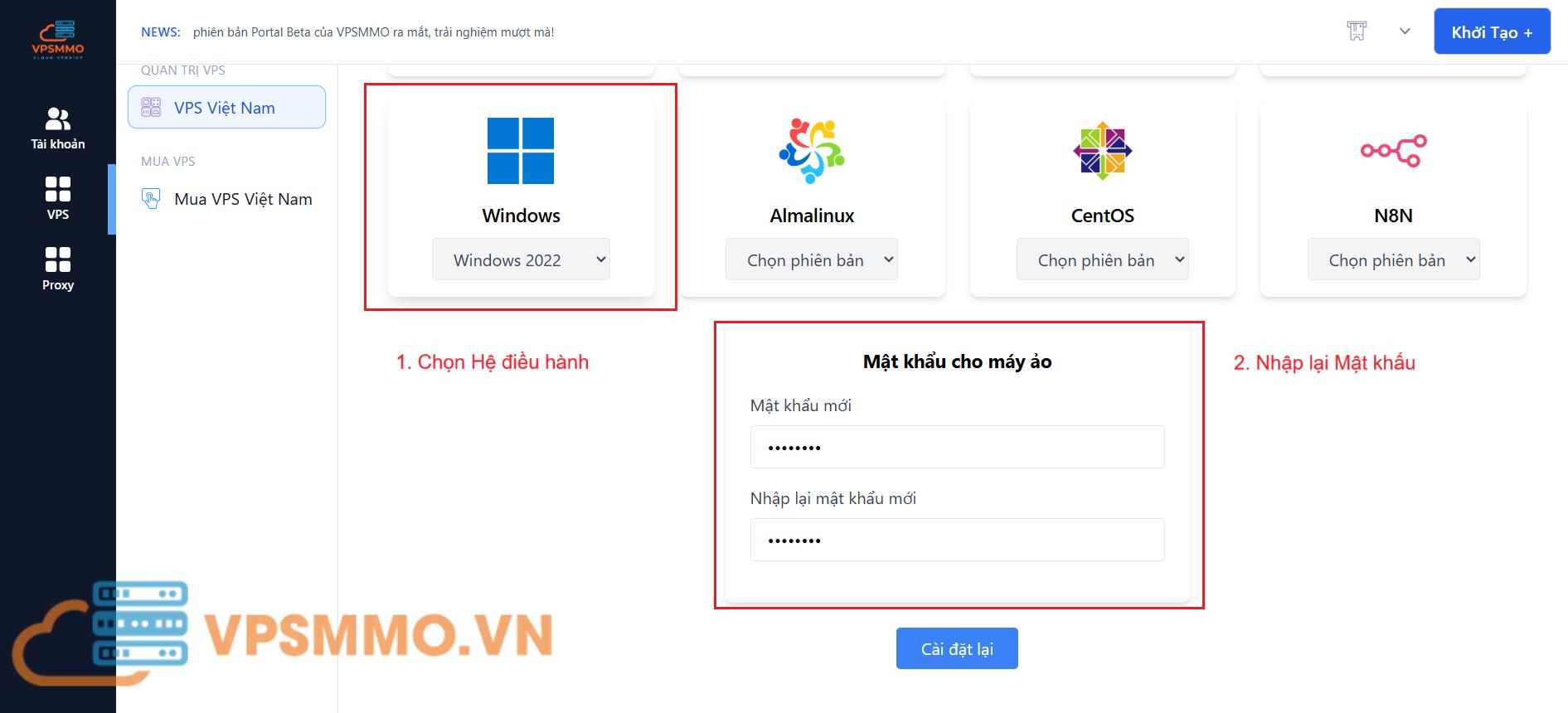
Lưu ý quan trọng: Sau khi cài lại Windows, Quý khách vẫn phải thực hiện lại flow set password qua VNC ở mục 4 như khi vừa mua mới, vì hệ thống cấp lại template Windows tươi.
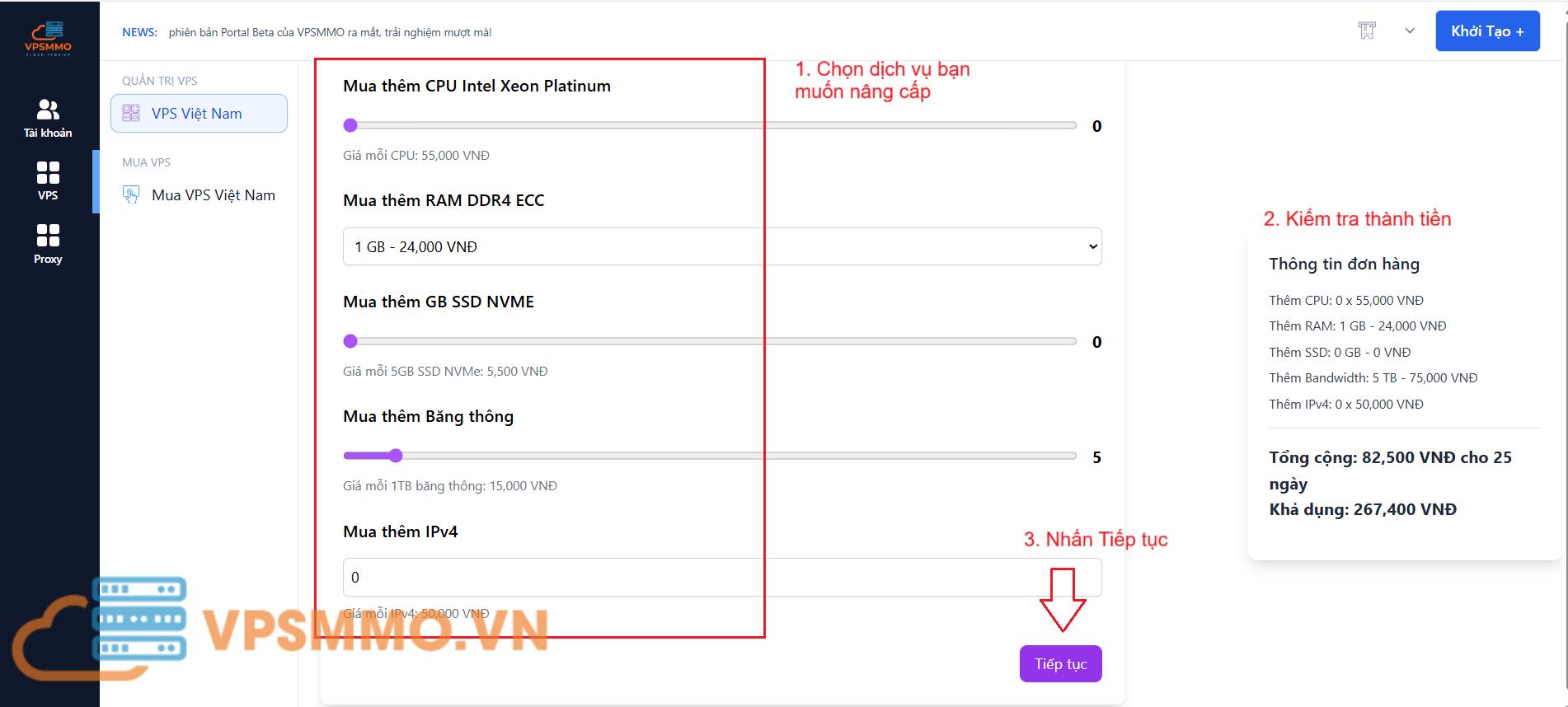
Nâng cấp cấu hình VPS
Khi nhu cầu tăng lên (cần thêm RAM, CPU, ổ cứng), Quý khách click vào dấu ba chấm → Nâng cấp cấu hình.

Chọn cấu hình mới, kiểm tra giá và xác nhận thanh toán. Sau khi nâng cấp xong, nhấn Start để khởi động lại VPS với cấu hình mới.
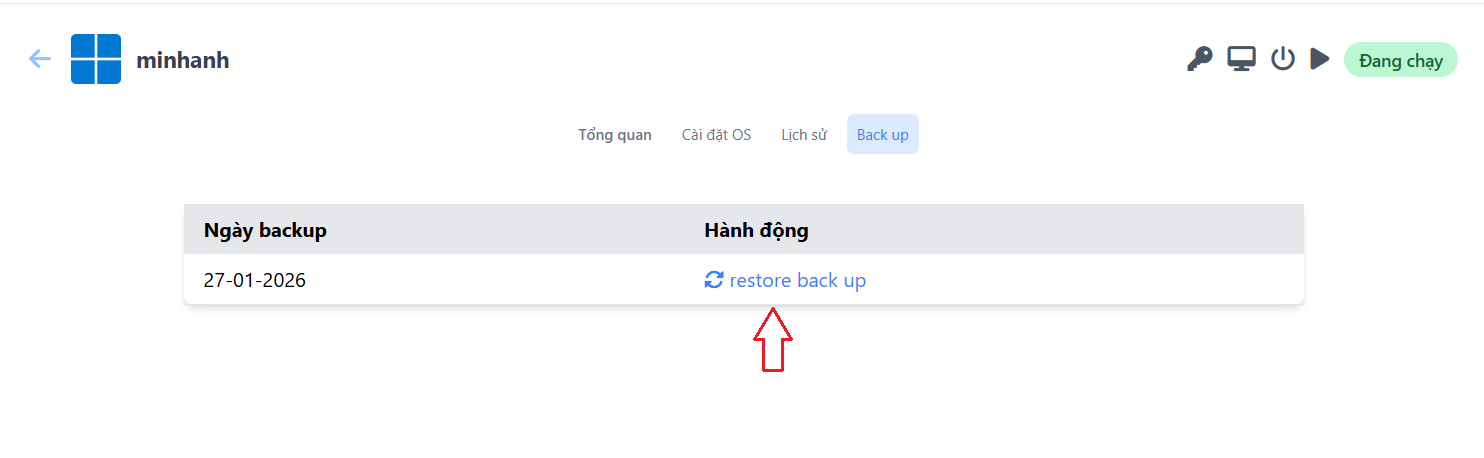
Restore Backup VPS
Nếu VPS gặp sự cố hoặc muốn quay về thời điểm trước đó, Quý khách vào chi tiết VPS, xem danh sách bản backup theo ngày, sau đó click “Restore Back up” tại bản muốn khôi phục.
7. Lỗi thường gặp khi kết nối VPS Windows
Lỗi 1: Remote Desktop báo “Your credentials did not work”
Nguyên nhân phổ biến nhất: Quý khách chưa thực hiện set password qua VNC ở mục 4. Windows Server không cho đăng nhập RDP lần đầu vì mật khẩu Quý khách đặt khi mua đang ở trạng thái “phải đổi trước khi đăng nhập”.
Cách xử lý: Quay lại mục 4 và làm đủ 6 bước. Sau khi đặt mật khẩu mới qua VNC xong, mới quay ra dùng Remote Desktop Connection với mật khẩu MỚI vừa đặt qua VNC (không phải mật khẩu ban đầu khi khởi tạo VPS).
Trường hợp khác: Quý khách đã đổi pass qua VNC nhưng vẫn lỗi → kiểm tra lại đã copy đúng IP chưa, có gõ nhầm ký tự đặc biệt không (ký tự `l` và `1`, `O` và `0` rất dễ nhầm). Nếu vẫn không vào, liên hệ Zalo 0589549338.
Lỗi 2: Không kết nối được VNC trên Portal
Nếu trình duyệt báo lỗi không mở được noVNC hoặc màn hình trắng, Quý khách thử:
- Reload lại trang Portal và mở VNC lại
- Đổi sang trình duyệt khác (Chrome → Firefox hoặc ngược lại)
- Tắt extension chặn quảng cáo / VPN tạm thời
- Kiểm tra VPS đang chạy hay đã tắt: trạng thái phải là “Đang chạy”
Nếu vẫn không vào được, liên hệ Zalo 0589549338 để được hỗ trợ.
Lỗi 3: Không gõ được password trên màn VNC
Đôi khi noVNC có thể không nhận phím trực tiếp. Quý khách click vào vùng màn hình VNC một lần để focus, sau đó gõ lại. Nếu vẫn không gõ được, có thể dùng tính năng copy-paste qua icon clipboard ở sidebar.
Lỗi 4: Mật khẩu mới bị từ chối ở bước 5
Windows Server có chính sách bảo mật khá nghiêm. Mật khẩu mới phải đáp ứng đủ:
- Tối thiểu 8 ký tự
- Có chữ HOA + chữ thường + số + ký tự đặc biệt
- Không chứa tên user (không chứa từ “Administrator”)
- Không trùng với mật khẩu ban đầu Quý khách đặt lúc khởi tạo VPS
Ví dụ mật khẩu hợp lệ: Vpsmmo@2026, MyServer#789, NewPass!2026.
Lỗi 5: RDP kết nối được rồi tự ngắt sau vài phút
Thường do mạng internet phía Quý khách không ổn định hoặc bị block port 3389 ở mạng nội bộ (cơ quan, trường học). Quý khách thử:
- Chuyển sang mạng 4G/5G để test xem có ổn không
- Nếu mạng cơ quan chặn, có thể kết nối qua VPN trước rồi mới RDP
- Reboot VPS qua Portal nếu nghi ngờ phía VPS
Kết luận
Như vậy, qua bài viết này Quý khách đã nắm đầy đủ quy trình thuê và sử dụng VPS Windows tại VPSMMO: từ đăng ký tài khoản, nạp tiền, chọn gói, set password qua VNC lần đầu, đến kết nối Remote Desktop và các thao tác quản lý hàng ngày. Cơ chế bảo mật mật khẩu của VPSMMO được thiết kế để bảo vệ Quý khách ngay cả khi tài khoản Portal hay email bị xâm nhập — đổi lại Quý khách cần chủ động lưu lại mật khẩu mình đặt và mật khẩu mới đổi qua VNC. Bước set password qua VNC tuy có thêm 1-2 phút thao tác, nhưng đổi lại Quý khách có được mật khẩu riêng do chính mình đặt — không ai khác biết, kể cả VPSMMO.
Trong quá trình sử dụng, nếu Quý khách gặp bất kỳ vướng mắc nào, đội ngũ kỹ thuật VPSMMO sẵn sàng hỗ trợ 24/7 qua Zalo và Hotline.
CÔNG TY TNHH VPSMMO
- VP: 8B đường B31, KDC 91B, Phường Tân An, Thành phố Cần Thơ
- Tel/Zalo: 0589549338
- Email: info@vpsmmo.vn
- Website: vpsmmo.vn
Chúc Quý khách sử dụng VPS Windows tại VPSMMO thuận lợi và hiệu quả!
Blog#Hướng #dẫn #Thuê #VPS #Windows #tại #VPSMMO1778820528
Warning: mysqli_query(): (HY000/1194): Table 'wp_options' is marked as crashed and should be repaired in /www/wwwroot/petsr4u.com/wp-includes/class-wpdb.php on line 2357
Warning: mysqli_query(): (HY000/1194): Table 'wp_options' is marked as crashed and should be repaired in /www/wwwroot/petsr4u.com/wp-includes/class-wpdb.php on line 2357
Warning: mysqli_query(): (HY000/1194): Table 'wp_options' is marked as crashed and should be repaired in /www/wwwroot/petsr4u.com/wp-includes/class-wpdb.php on line 2357
Warning: mysqli_query(): (HY000/1194): Table 'wp_options' is marked as crashed and should be repaired in /www/wwwroot/petsr4u.com/wp-includes/class-wpdb.php on line 2357
Warning: mysqli_query(): (HY000/1194): Table 'wp_options' is marked as crashed and should be repaired in /www/wwwroot/petsr4u.com/wp-includes/class-wpdb.php on line 2357
Warning: mysqli_query(): (HY000/1194): Table 'wp_options' is marked as crashed and should be repaired in /www/wwwroot/petsr4u.com/wp-includes/class-wpdb.php on line 2357
Warning: mysqli_query(): (HY000/1194): Table 'wp_options' is marked as crashed and should be repaired in /www/wwwroot/petsr4u.com/wp-includes/class-wpdb.php on line 2357
Warning: mysqli_query(): (HY000/1194): Table 'wp_options' is marked as crashed and should be repaired in /www/wwwroot/petsr4u.com/wp-includes/class-wpdb.php on line 2357
Warning: mysqli_query(): (HY000/1194): Table 'wp_options' is marked as crashed and should be repaired in /www/wwwroot/petsr4u.com/wp-includes/class-wpdb.php on line 2357
Warning: mysqli_query(): (HY000/1194): Table 'wp_options' is marked as crashed and should be repaired in /www/wwwroot/petsr4u.com/wp-includes/class-wpdb.php on line 2357
Warning: mysqli_query(): (HY000/1194): Table 'wp_options' is marked as crashed and should be repaired in /www/wwwroot/petsr4u.com/wp-includes/class-wpdb.php on line 2357
Warning: mysqli_query(): (HY000/1194): Table 'wp_options' is marked as crashed and should be repaired in /www/wwwroot/petsr4u.com/wp-includes/class-wpdb.php on line 2357
Warning: mysqli_query(): (HY000/1194): Table 'wp_options' is marked as crashed and should be repaired in /www/wwwroot/petsr4u.com/wp-includes/class-wpdb.php on line 2357
Warning: mysqli_query(): (HY000/1194): Table 'wp_options' is marked as crashed and should be repaired in /www/wwwroot/petsr4u.com/wp-includes/class-wpdb.php on line 2357
Warning: mysqli_query(): (HY000/1194): Table 'wp_options' is marked as crashed and should be repaired in /www/wwwroot/petsr4u.com/wp-includes/class-wpdb.php on line 2357
Warning: mysqli_query(): (HY000/1194): Table 'wp_options' is marked as crashed and should be repaired in /www/wwwroot/petsr4u.com/wp-includes/class-wpdb.php on line 2357
Warning: mysqli_query(): (HY000/1194): Table 'wp_options' is marked as crashed and should be repaired in /www/wwwroot/petsr4u.com/wp-includes/class-wpdb.php on line 2357
Warning: mysqli_query(): (HY000/1194): Table 'wp_options' is marked as crashed and should be repaired in /www/wwwroot/petsr4u.com/wp-includes/class-wpdb.php on line 2357
Warning: mysqli_query(): (HY000/1194): Table 'wp_options' is marked as crashed and should be repaired in /www/wwwroot/petsr4u.com/wp-includes/class-wpdb.php on line 2357
Warning: mysqli_query(): (HY000/1194): Table 'wp_options' is marked as crashed and should be repaired in /www/wwwroot/petsr4u.com/wp-includes/class-wpdb.php on line 2357
Warning: mysqli_query(): (HY000/1194): Table 'wp_options' is marked as crashed and should be repaired in /www/wwwroot/petsr4u.com/wp-includes/class-wpdb.php on line 2357
Warning: mysqli_query(): (HY000/1194): Table 'wp_options' is marked as crashed and should be repaired in /www/wwwroot/petsr4u.com/wp-includes/class-wpdb.php on line 2357
Warning: mysqli_query(): (HY000/1194): Table 'wp_options' is marked as crashed and should be repaired in /www/wwwroot/petsr4u.com/wp-includes/class-wpdb.php on line 2357
Warning: mysqli_query(): (HY000/1194): Table 'wp_options' is marked as crashed and should be repaired in /www/wwwroot/petsr4u.com/wp-includes/class-wpdb.php on line 2357

Warning: mysqli_query(): (HY000/1194): Table 'wp_options' is marked as crashed and should be repaired in /www/wwwroot/petsr4u.com/wp-includes/class-wpdb.php on line 2357
Warning: mysqli_query(): (HY000/1194): Table 'wp_options' is marked as crashed and should be repaired in /www/wwwroot/petsr4u.com/wp-includes/class-wpdb.php on line 2357
Warning: mysqli_query(): (HY000/1194): Table 'wp_options' is marked as crashed and should be repaired in /www/wwwroot/petsr4u.com/wp-includes/class-wpdb.php on line 2357
Warning: mysqli_query(): (HY000/1194): Table 'wp_options' is marked as crashed and should be repaired in /www/wwwroot/petsr4u.com/wp-includes/class-wpdb.php on line 2357
Warning: mysqli_query(): (HY000/1194): Table 'wp_options' is marked as crashed and should be repaired in /www/wwwroot/petsr4u.com/wp-includes/class-wpdb.php on line 2357
Warning: mysqli_query(): (HY000/1194): Table 'wp_options' is marked as crashed and should be repaired in /www/wwwroot/petsr4u.com/wp-includes/class-wpdb.php on line 2357
Warning: mysqli_query(): (HY000/1194): Table 'wp_options' is marked as crashed and should be repaired in /www/wwwroot/petsr4u.com/wp-includes/class-wpdb.php on line 2357
Warning: mysqli_query(): (HY000/1194): Table 'wp_options' is marked as crashed and should be repaired in /www/wwwroot/petsr4u.com/wp-includes/class-wpdb.php on line 2357
Warning: mysqli_query(): (HY000/1194): Table 'wp_options' is marked as crashed and should be repaired in /www/wwwroot/petsr4u.com/wp-includes/class-wpdb.php on line 2357
Warning: mysqli_query(): (HY000/1194): Table 'wp_options' is marked as crashed and should be repaired in /www/wwwroot/petsr4u.com/wp-includes/class-wpdb.php on line 2357
Warning: mysqli_query(): (HY000/1194): Table 'wp_options' is marked as crashed and should be repaired in /www/wwwroot/petsr4u.com/wp-includes/class-wpdb.php on line 2357
Warning: mysqli_query(): (HY000/1194): Table 'wp_options' is marked as crashed and should be repaired in /www/wwwroot/petsr4u.com/wp-includes/class-wpdb.php on line 2357
Warning: mysqli_query(): (HY000/1194): Table 'wp_options' is marked as crashed and should be repaired in /www/wwwroot/petsr4u.com/wp-includes/class-wpdb.php on line 2357
Warning: mysqli_query(): (HY000/1194): Table 'wp_options' is marked as crashed and should be repaired in /www/wwwroot/petsr4u.com/wp-includes/class-wpdb.php on line 2357
Warning: mysqli_query(): (HY000/1194): Table 'wp_options' is marked as crashed and should be repaired in /www/wwwroot/petsr4u.com/wp-includes/class-wpdb.php on line 2357
Warning: mysqli_query(): (HY000/1194): Table 'wp_options' is marked as crashed and should be repaired in /www/wwwroot/petsr4u.com/wp-includes/class-wpdb.php on line 2357
Warning: mysqli_query(): (HY000/1194): Table 'wp_options' is marked as crashed and should be repaired in /www/wwwroot/petsr4u.com/wp-includes/class-wpdb.php on line 2357
Warning: mysqli_query(): (HY000/1194): Table 'wp_options' is marked as crashed and should be repaired in /www/wwwroot/petsr4u.com/wp-includes/class-wpdb.php on line 2357
Warning: mysqli_query(): (HY000/1194): Table 'wp_options' is marked as crashed and should be repaired in /www/wwwroot/petsr4u.com/wp-includes/class-wpdb.php on line 2357
Warning: mysqli_query(): (HY000/1194): Table 'wp_options' is marked as crashed and should be repaired in /www/wwwroot/petsr4u.com/wp-includes/class-wpdb.php on line 2357
Warning: mysqli_query(): (HY000/1194): Table 'wp_options' is marked as crashed and should be repaired in /www/wwwroot/petsr4u.com/wp-includes/class-wpdb.php on line 2357
Warning: mysqli_query(): (HY000/1194): Table 'wp_options' is marked as crashed and should be repaired in /www/wwwroot/petsr4u.com/wp-includes/class-wpdb.php on line 2357
Warning: mysqli_query(): (HY000/1194): Table 'wp_options' is marked as crashed and should be repaired in /www/wwwroot/petsr4u.com/wp-includes/class-wpdb.php on line 2357
Warning: mysqli_query(): (HY000/1194): Table 'wp_options' is marked as crashed and should be repaired in /www/wwwroot/petsr4u.com/wp-includes/class-wpdb.php on line 2357
Warning: mysqli_query(): (HY000/1194): Table 'wp_options' is marked as crashed and should be repaired in /www/wwwroot/petsr4u.com/wp-includes/class-wpdb.php on line 2357
Warning: mysqli_query(): (HY000/1194): Table 'wp_options' is marked as crashed and should be repaired in /www/wwwroot/petsr4u.com/wp-includes/class-wpdb.php on line 2357
Warning: mysqli_query(): (HY000/1194): Table 'wp_options' is marked as crashed and should be repaired in /www/wwwroot/petsr4u.com/wp-includes/class-wpdb.php on line 2357
Warning: mysqli_query(): (HY000/1194): Table 'wp_options' is marked as crashed and should be repaired in /www/wwwroot/petsr4u.com/wp-includes/class-wpdb.php on line 2357
Warning: mysqli_query(): (HY000/1194): Table 'wp_options' is marked as crashed and should be repaired in /www/wwwroot/petsr4u.com/wp-includes/class-wpdb.php on line 2357
Warning: mysqli_query(): (HY000/1194): Table 'wp_options' is marked as crashed and should be repaired in /www/wwwroot/petsr4u.com/wp-includes/class-wpdb.php on line 2357
Warning: mysqli_query(): (HY000/1194): Table 'wp_options' is marked as crashed and should be repaired in /www/wwwroot/petsr4u.com/wp-includes/class-wpdb.php on line 2357
Warning: mysqli_query(): (HY000/1194): Table 'wp_options' is marked as crashed and should be repaired in /www/wwwroot/petsr4u.com/wp-includes/class-wpdb.php on line 2357
Warning: mysqli_query(): (HY000/1194): Table 'wp_options' is marked as crashed and should be repaired in /www/wwwroot/petsr4u.com/wp-includes/class-wpdb.php on line 2357
Warning: mysqli_query(): (HY000/1194): Table 'wp_options' is marked as crashed and should be repaired in /www/wwwroot/petsr4u.com/wp-includes/class-wpdb.php on line 2357
Warning: mysqli_query(): (HY000/1194): Table 'wp_options' is marked as crashed and should be repaired in /www/wwwroot/petsr4u.com/wp-includes/class-wpdb.php on line 2357
Warning: mysqli_query(): (HY000/1194): Table 'wp_options' is marked as crashed and should be repaired in /www/wwwroot/petsr4u.com/wp-includes/class-wpdb.php on line 2357
Warning: mysqli_query(): (HY000/1194): Table 'wp_options' is marked as crashed and should be repaired in /www/wwwroot/petsr4u.com/wp-includes/class-wpdb.php on line 2357
Warning: mysqli_query(): (HY000/1194): Table 'wp_options' is marked as crashed and should be repaired in /www/wwwroot/petsr4u.com/wp-includes/class-wpdb.php on line 2357
Warning: mysqli_query(): (HY000/1194): Table 'wp_options' is marked as crashed and should be repaired in /www/wwwroot/petsr4u.com/wp-includes/class-wpdb.php on line 2357
Warning: mysqli_query(): (HY000/1194): Table 'wp_options' is marked as crashed and should be repaired in /www/wwwroot/petsr4u.com/wp-includes/class-wpdb.php on line 2357
Warning: mysqli_query(): (HY000/1194): Table 'wp_options' is marked as crashed and should be repaired in /www/wwwroot/petsr4u.com/wp-includes/class-wpdb.php on line 2357
Warning: mysqli_query(): (HY000/1194): Table 'wp_options' is marked as crashed and should be repaired in /www/wwwroot/petsr4u.com/wp-includes/class-wpdb.php on line 2357